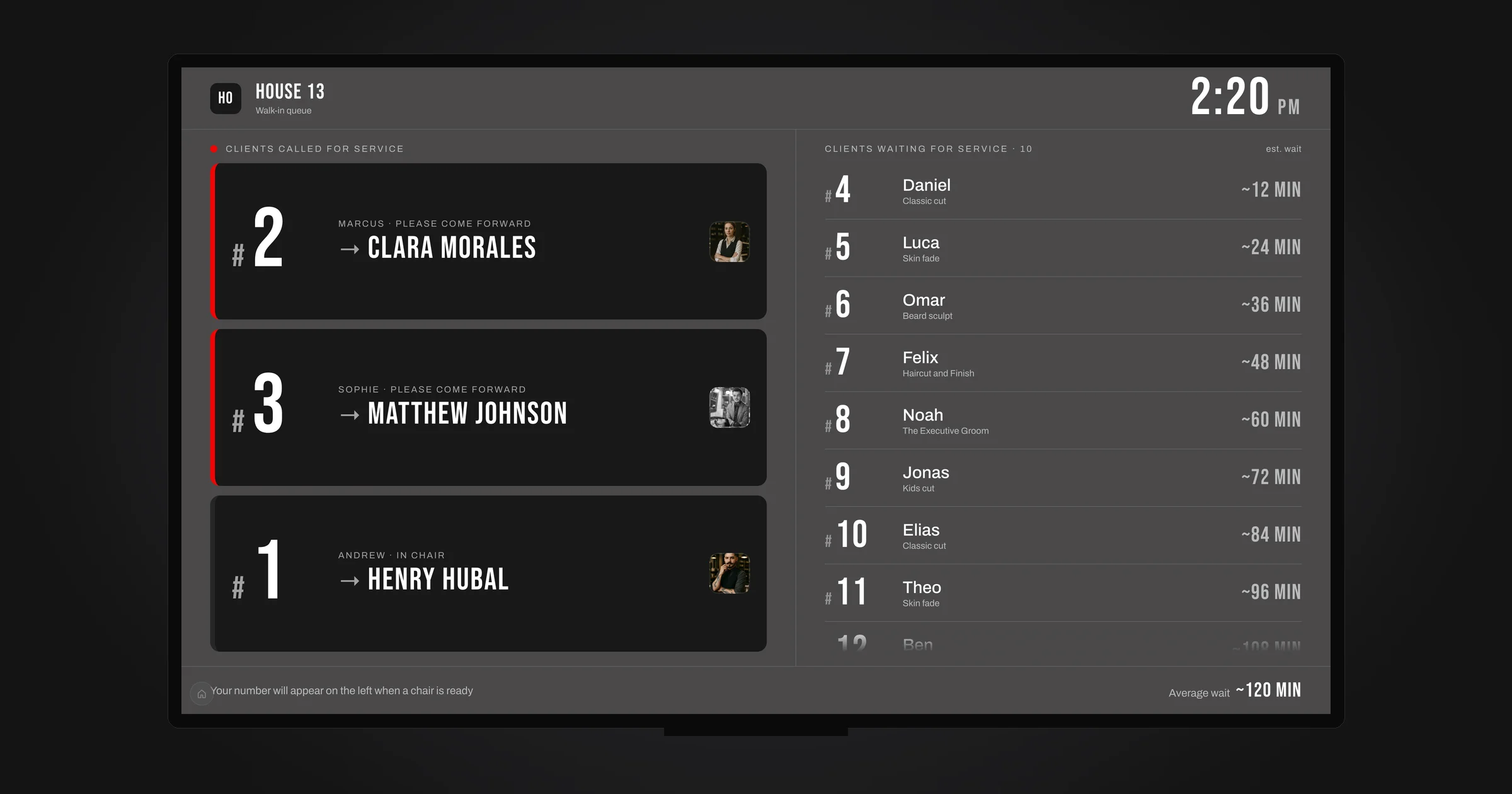
Barberly has worked with SumUp for online payments for a while: clients pay in your app and on your website, leave a deposit or save a card. Since 11 November 2026 SumUp also works at the front desk. You start the payment at checkout in Barberly, the amount appears on the SumUp terminal, and the client pays there.
Which SumUp terminals work
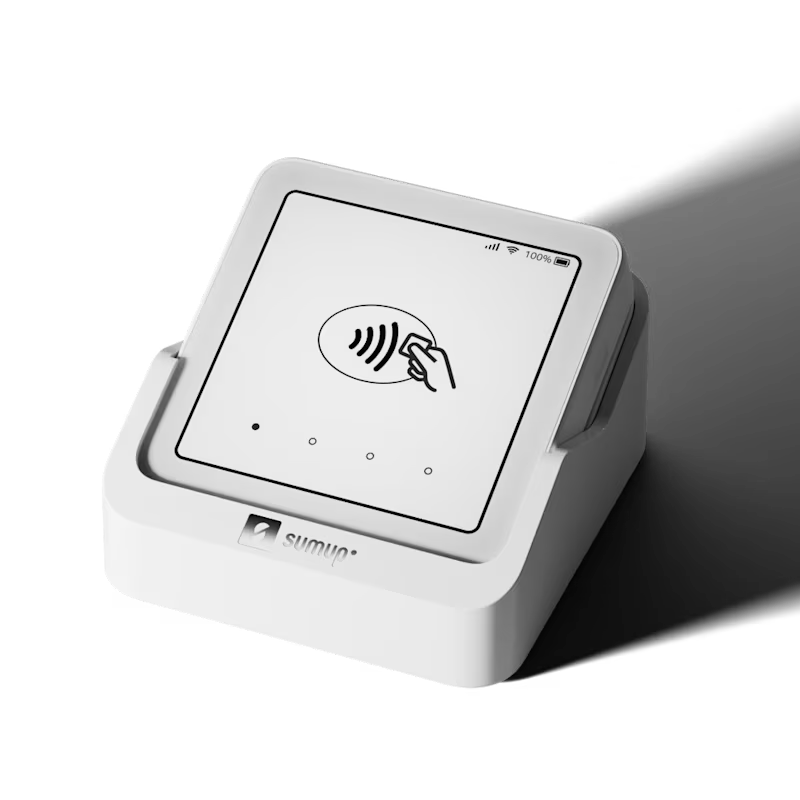
Two models connect to Barberly:
- SumUp Solo, the touchscreen terminal with Wi-Fi and a SIM card. It is sold in Europe, the United Kingdom, the United States, Australia (as "Solo EFTPOS Terminal") and Brazil. A Solo sold together with a printer works the same way.
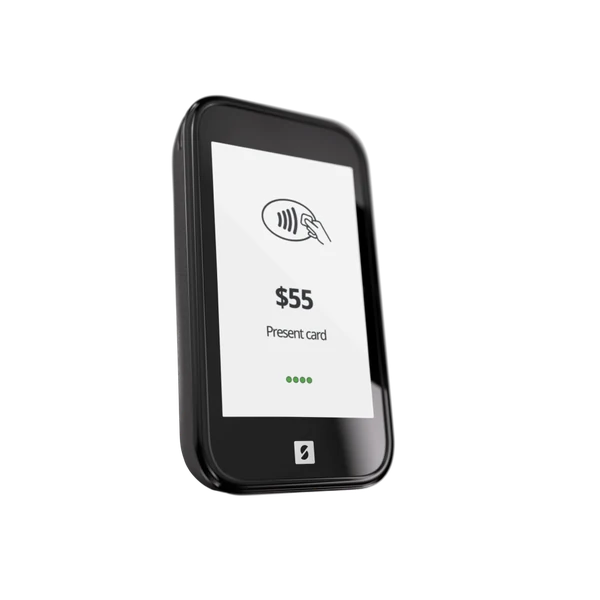
- SumUp Go, sold in Mexico and Canada.
Solo Lite, SumUp Terminal, Air, 3G and PIN+ do not connect, and neither do local models such as Plus Card Reader, SumUp Top and SumUp Smart. Solo Lite and Air work only together with a phone, and SumUp Terminal is a separate point of sale with its own app.
How a payment works
- At checkout in Barberly, choose the SumUp terminal.
- The amount appears on the terminal.
- The client taps, inserts or swipes the card, and the payment shows up in Barberly a few seconds later.
The payment is started from Barberly, so it works the same from the web portal and from the Barberly app on a phone or tablet. Terminal payments appear in your reports next to online payments, and refunds are made in Barberly.
How to connect a terminal
- If you connected SumUp before 11 November 2026, disconnect it in Payments → Configure payments and connect it again once. This lets Barberly use your terminals.
- On the Solo, log out and open Connections → API → Connect. On a Go, tap Connections → API → Connect on the login screen. The terminal shows a code.
- In Barberly, go to Payments → Configure payments → SumUp → Terminals and enter the code. It is valid for 5 minutes.
Step by step with all details: SumUp in the help center.
Good to know
- Tips are added when clients pay in the app or on the website, not on the SumUp terminal.
- While a Solo waits for the card, you can cancel the payment in Barberly. A payment on a Go is cancelled on the Go.
- Terminals are connected for the whole shop. Each team member can still connect their own SumUp account, or another provider, for online payments.
- Barberly takes no commission. SumUp's own fees apply.
Everything SumUp does in Barberly, from deposits and no-show fees to memberships, is on one page: SumUp for barbershops.