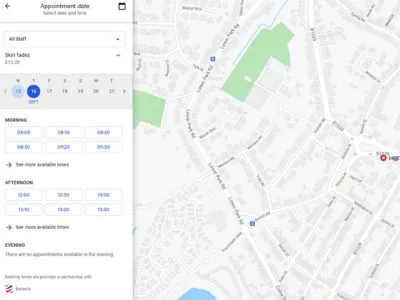
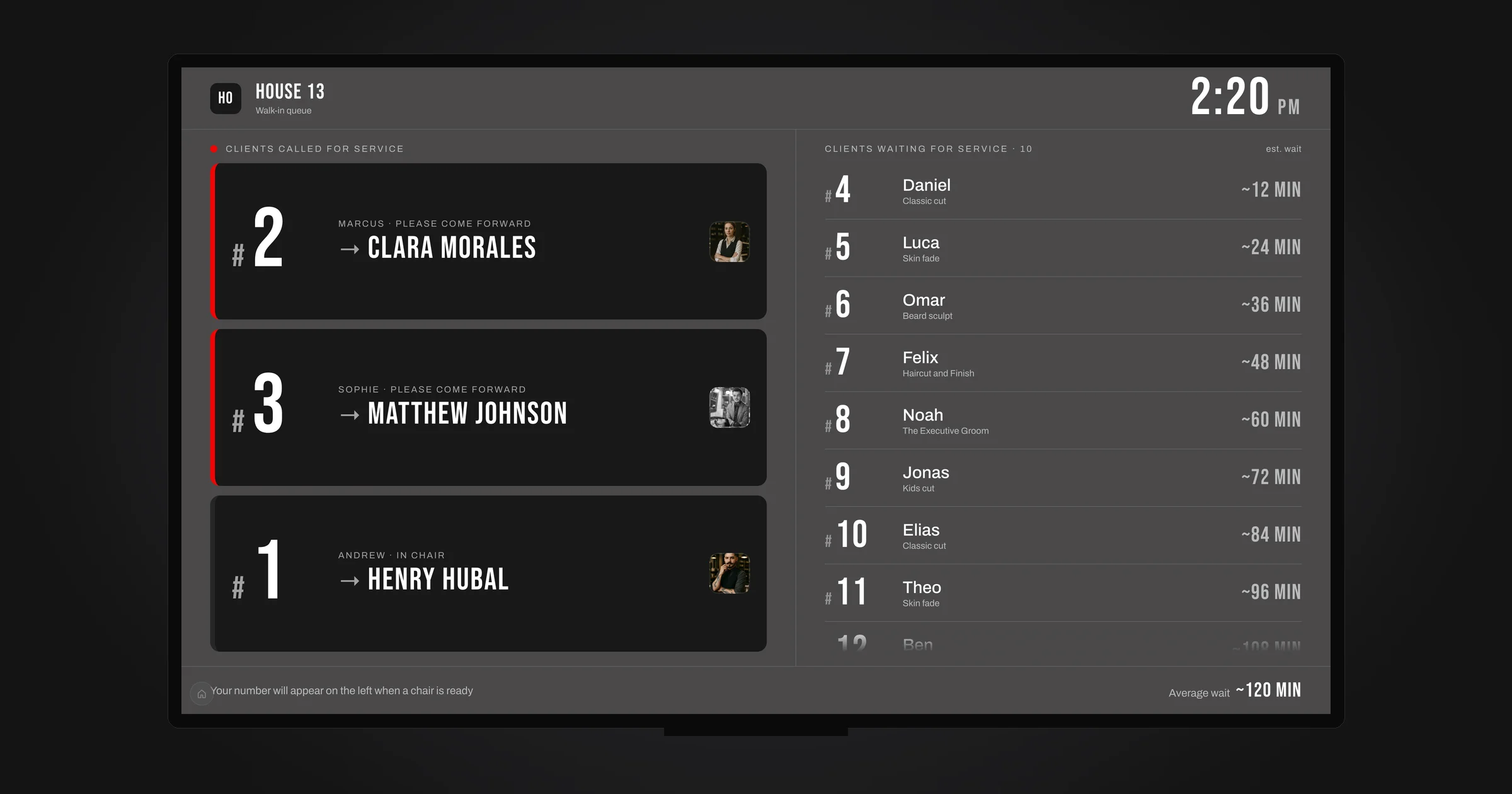
A TV in the shop can show one of two Barberly screens. The queue screen shows who is called to which barber and who is still waiting, with the estimated wait. The appointment board shows today's timeline for each barber: online bookings, walk-ins, breaks and who is in the chair. Both update within seconds when something changes.
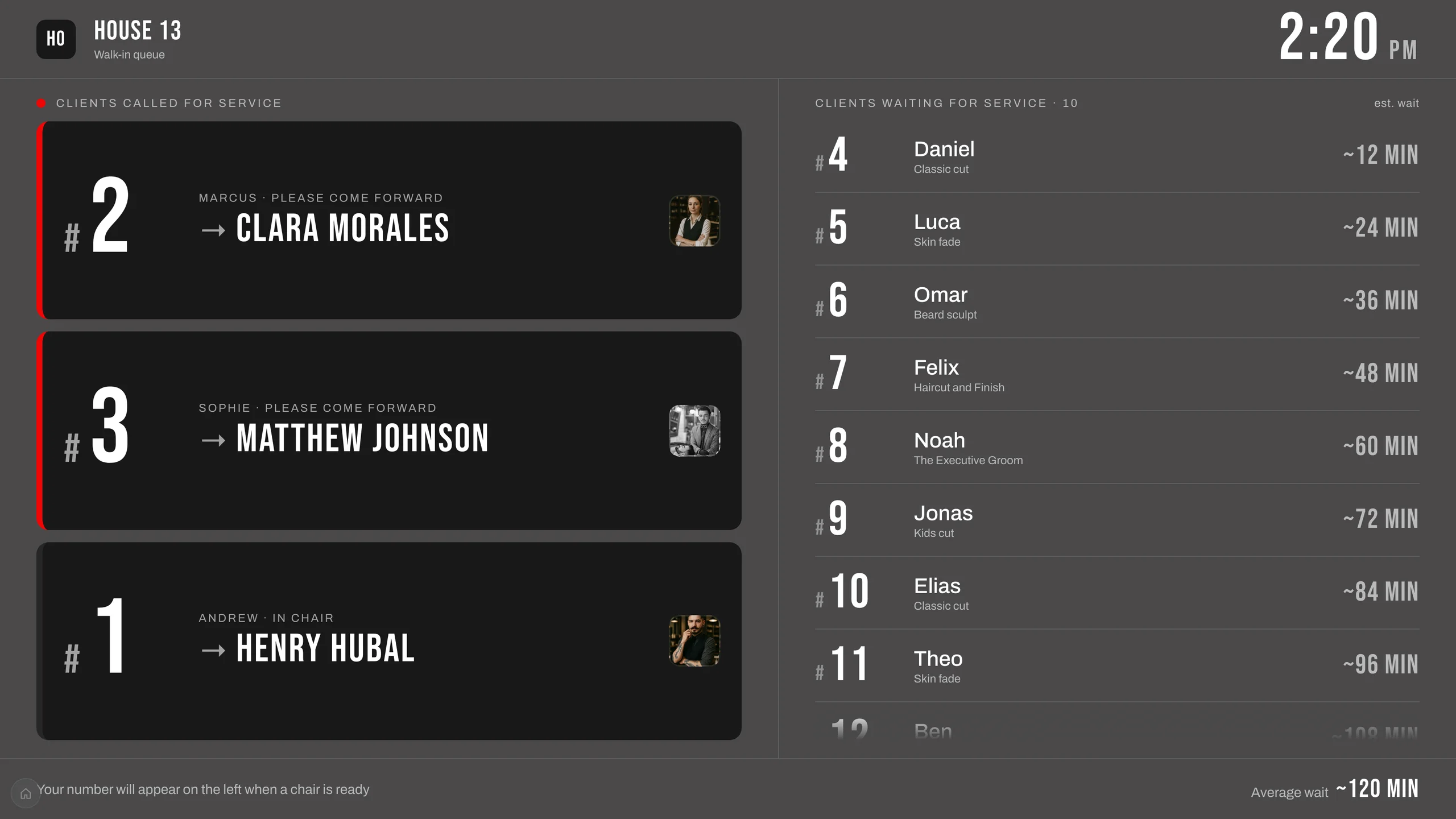
This guide covers the ways to get them onto a TV, starting with the simplest.
The Barberly TV app for Apple TV and Google TV
Barberly: Walk-in Queue is a free app for Barberly customers. You sign in once, pick the location and the screen, and the TV stays on it. The app keeps the TV awake and opens the same screen again after a power cut or restart. For a TV that runs all day, this is the option we recommend.
What you need depends on the platform:
- Apple TV. You need an Apple TV box (Apple TV HD or Apple TV 4K with tvOS 15.1 or later) connected to the TV with HDMI. The app is installed from the App Store on the box. The "Apple TV" app built into many Samsung, LG and Sony TVs is only for films and series and cannot install other apps, so it does not work here.
- Google TV. Either a TV with Google TV or Android TV built in, which many Sony, TCL, Hisense and Philips models have, or a separate box such as the Google TV Streamer or another Google TV or Android TV box. Android 7 or later. The app is installed from Google Play on the TV.
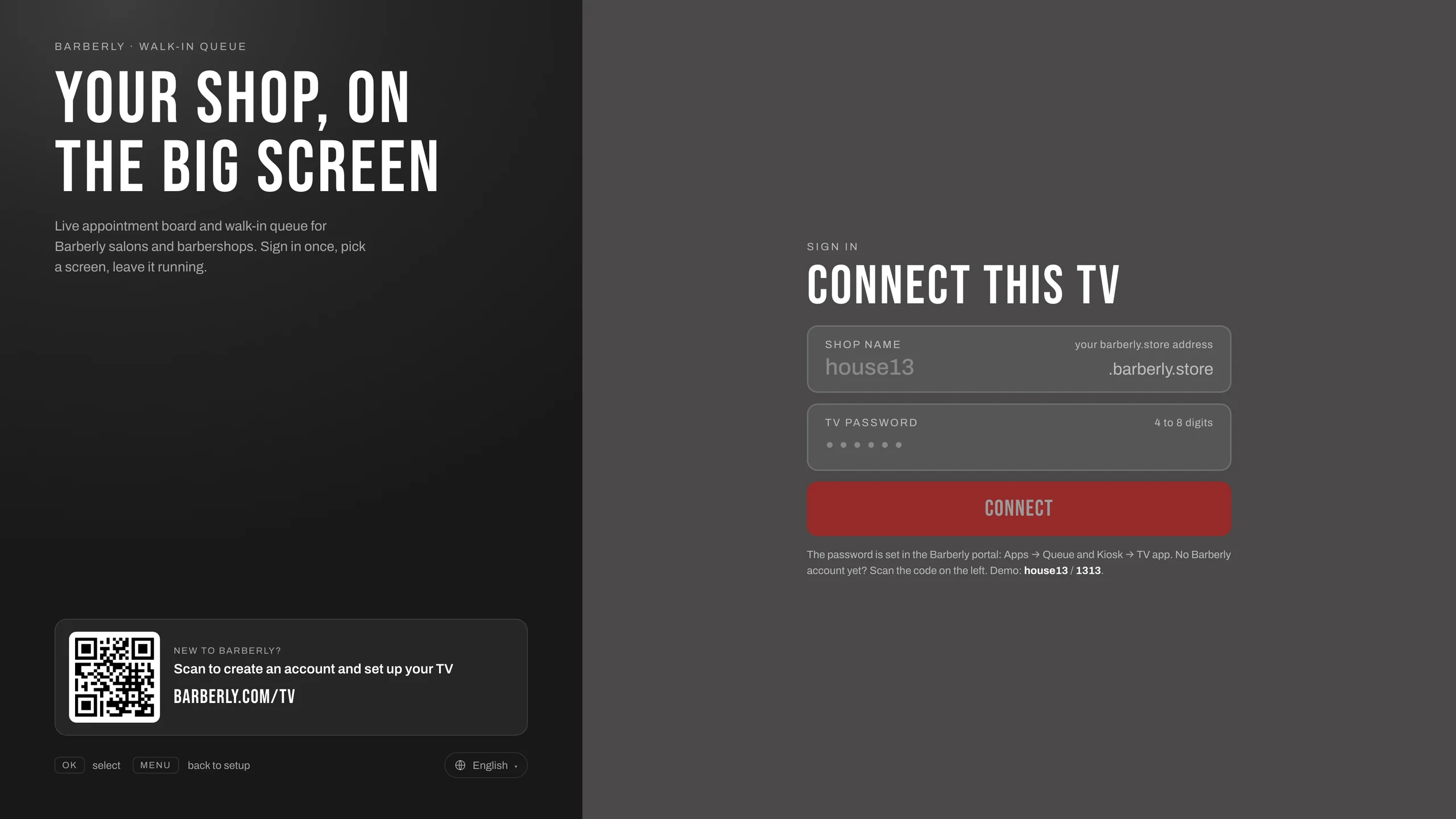
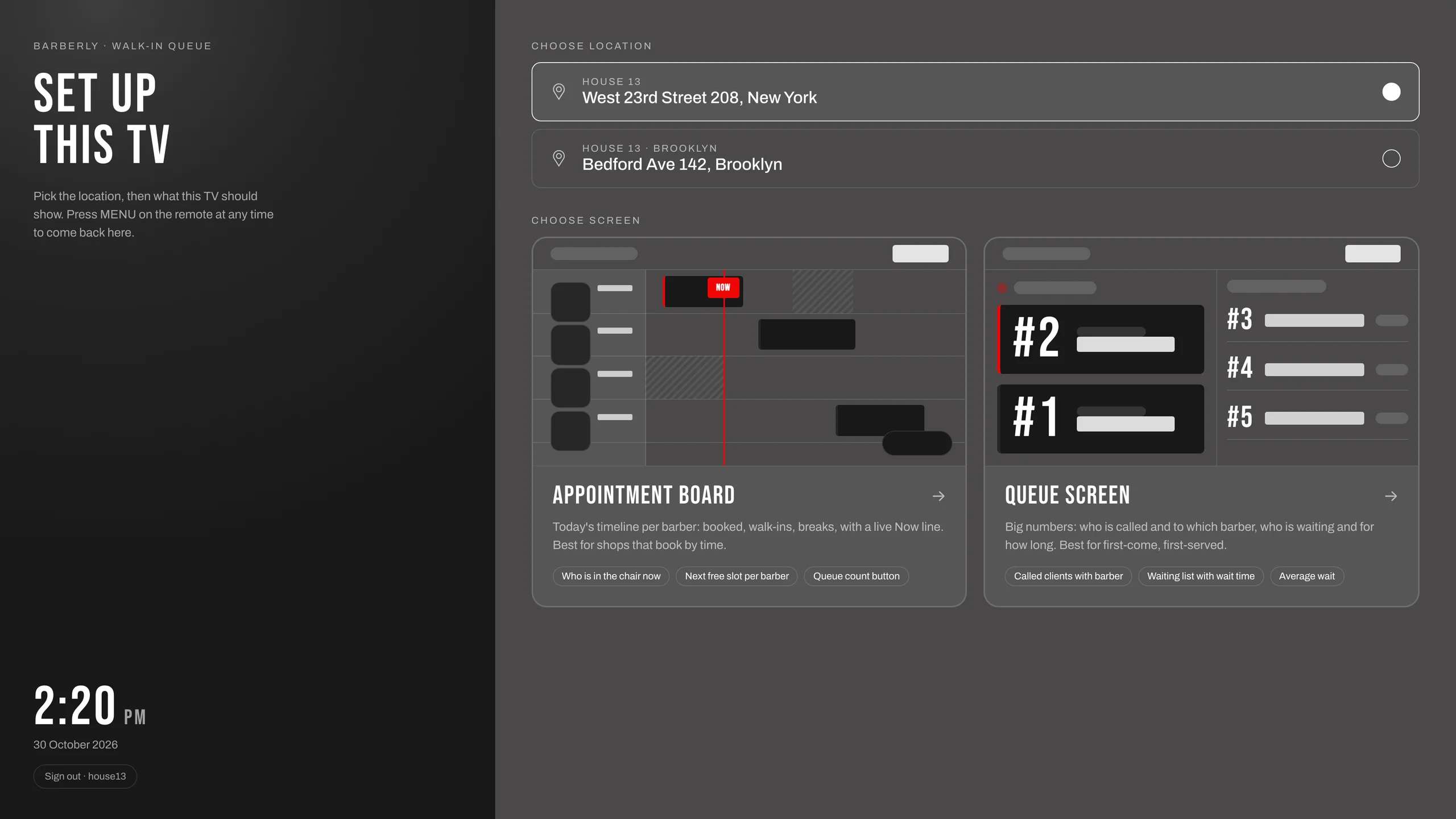
Setting it up takes a few minutes:
- In the Barberly portal or the Barberly business app, open Apps → Walk-in queue and kiosk → TV app and set a TV password of 4 to 8 digits.
- On the TV, search for "Barberly" in the App Store or Google Play and install Barberly: Walk-in Queue.
- Open the app, enter your shop name (the first part of your
barberly.storeaddress) and the TV password. - Pick the location and the screen: the queue screen or the appointment board.
Each TV picks its own screen, so one TV can show the queue and another the board. Step by step with all settings: TV app for Apple TV and Google TV.
A browser on a smart TV
Many smart TVs without Google TV, for example most Samsung and LG models, have a web browser. Open your shop's barberly.store address in it and choose the screen on the staff setup page. You find the address in the portal under Apps → Walk-in queue and kiosk → My link.
This needs no extra device. Two things to check: turn off the TV's screen saver and automatic power off, and expect to open the page again after the TV has been switched off, because a TV browser usually does not reopen it by itself.
A computer or mini PC connected to the TV
Any computer with a browser works: an old laptop, a small mini PC behind the TV, or a desktop at the front desk.
- Connect the computer to the TV with an HDMI cable. Laptops with only USB-C need a USB-C to HDMI adapter.
- Choose that HDMI input on the TV.
- Open your
barberly.storeaddress in the browser, choose the screen and switch the browser to full screen (F11 on Windows, Control+Command+F on a Mac). - Turn off sleep and the screen saver on the computer.
This is a good option if the TV has no apps and no browser, or if a computer is already standing next to it. If you would rather not keep a computer running for the TV, a Google TV box usually costs less than a mini PC.
Casting and screen mirroring
Chromecast, AirPlay and Miracast can show a phone, tablet or computer screen on the TV without a cable. For the queue they are a short-term solution only: the device you cast from is tied up, and the picture stops when it goes to sleep, gets a call or leaves the Wi-Fi. For a screen that runs all day, use the TV app, the TV's own browser or a connected computer instead.
Which one to choose
- You have an Apple TV box, or a TV with Google TV or Android TV: install the TV app.
- A smart TV with a browser but no Google TV: use the browser, or add a Google TV box for the app.
- An older TV with HDMI: add a Google TV or Apple TV box, or connect a computer.
Good to know
- The TV needs internet.
- The screens are display only. Clients check in on the kiosk, not on the TV.
- Clients appear as first name and last initial, for example "Andrew G."
- Colours, type and texts follow your kiosk settings. More about both screens and the board settings: Queue screen and appointment board.
- The screens and the TV app are included in every Barberly plan.